
Settings
Manage your profile, organizations, preferences, sign-in, and API keys.
About Settings
Settings holds your own account: who you are, how Guardian behaves in this browser, and what can act as you.
To open Settings:
- Navigate to the application header
- Select the profile dropdown → Select Settings
Each section has its own link (for example, /settings?tab=api-keys), so you can bookmark or share it.
To see your member page as others in your organization see it, select Your Profile from the same dropdown. See Member Management.
Account
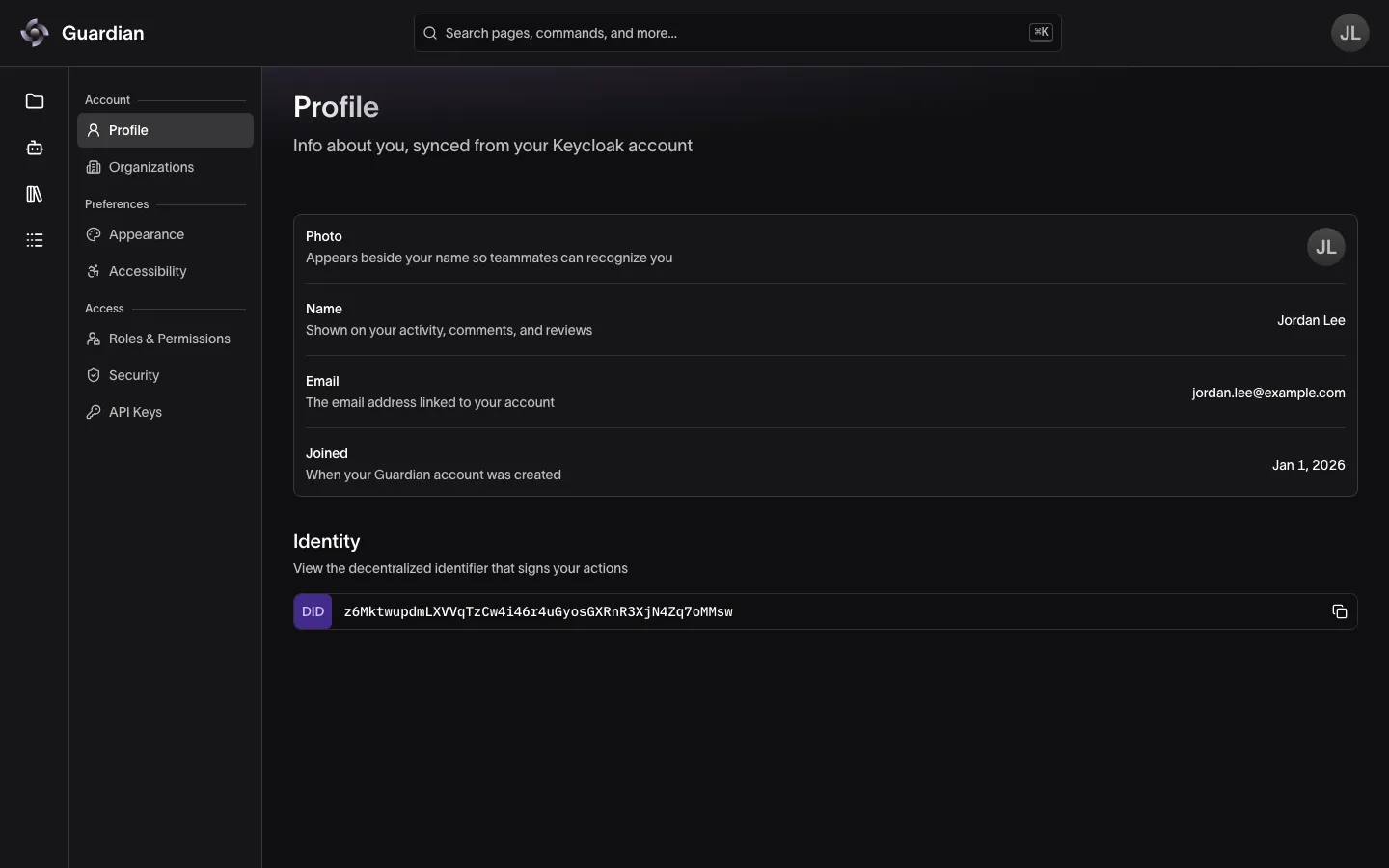
- Profile — your photo, name, and email, which come from your identity provider and are changed there (with Keycloak, select Edit in Keycloak) or by your administrator, and when you joined. Identity shows your DID. Your activity appears on your member page, under Your Profile in the profile dropdown.
- Organizations — every organization you belong to, with your roles and projects in each. The current organization is marked Current. Select View Details to see an organization’s identifiers. If you belong to more than one and sign in with Auth0, select Switch Organization to switch. If an organization from your sign-in can’t be shown, such as one you were removed from since you signed in, a warning above the list says how many, and signing in again updates the list.
Preferences
Preferences are saved in this browser only.
- Appearance — Theme (Light, Dark, or System to follow your operating system), Time Zone, and Default View. Dates and times show in your chosen time zone. Default View sets whether collection pages start as a grid or a list; narrow screens still show the grid.
- Accessibility — Reduce Motion, which stops animations, pulsing status dots, and sliding panels; Single-Key Shortcuts, which you can turn off for speech input or switch access, where a stray / would open search; and a list of Keyboard Shortcuts. If your operating system already asks for reduced motion, it is on everywhere.
Access
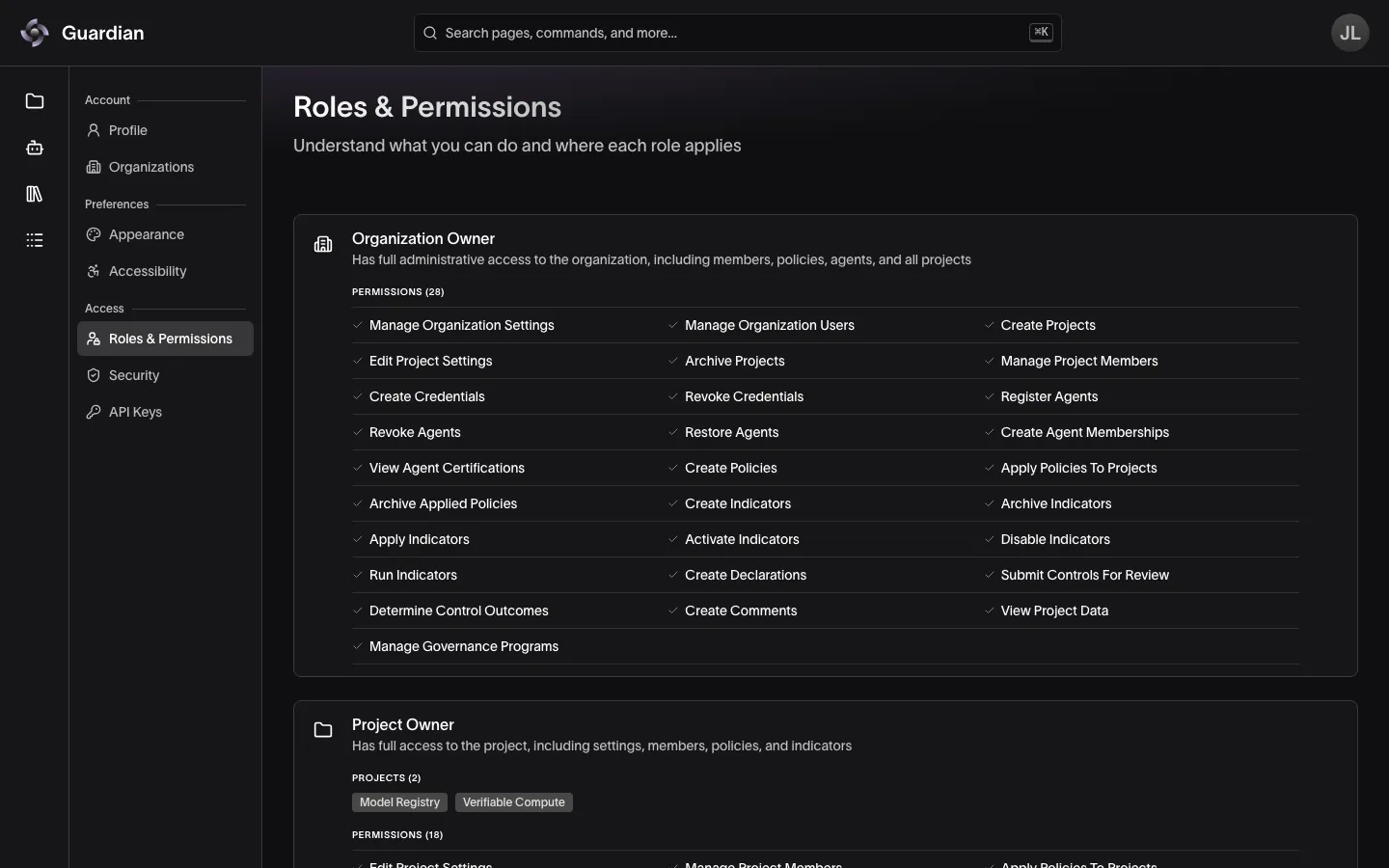
- Roles & Permissions — the roles you hold in the current organization, where each applies, and the permissions each grants. Learn more in Roles and Permissions.
- Security — how you signed in and when, with Sign Out, and a link to your identity provider’s account page to change your password or two-factor authentication, where your provider has one. Under This Browser, select Clear beside Local History and confirm to remove the recent searches, pinned log rows, and unsent comment drafts saved in this browser. Signing out does not clear them.
- API Keys — generate, view, and revoke your API keys. See API Keys.
Related
- API Keys — generate, scope, and revoke the keys listed under API Keys
- Roles and Permissions — what the roles listed under Roles & Permissions grant
- Member Management — the member page you open from Your Profile
- Activity Logs — search and export the actions taken in your organization