
Azure Storage Account
Configure Azure Storage for deployment
Overview
The Guardian Platform requires Azure Blob Storage for storing platform data.
Required containers:
- Governance artifacts container - Stores governance-related documents and artifacts
- Integrity store container - Stores cryptographic proofs and audit trails
This guide covers:
- Creating a storage account and containers (Azure CLI or Portal)
- Retrieving access credentials
- Configuring the Helm chart for Azure Blob Storage
Prerequisites
- Azure subscription with permissions to create storage accounts
- Azure CLI installed and configured (for CLI method)
- Resource group created (or permission to create one)
Helm Configuration
Add the following to the values.yaml and secrets.yaml files. Placeholders will be filled in throughout the steps below.
values.yaml:
governance-service:
  config:
    storageProvider: azure_blob
    azureStorageAccountName: "<storage-account-name>" # Filled in after step 2
    azureStorageContainerName: "governance-artifacts"

integrity-service:
  config:
    integrityAppBlobStoreType: azure_blob
    integrityAppBlobStoreAccount: "<storage-account-name>" # Filled in after step 2
integrityAppBlobStoreContainer: "integrity-store"secrets.yaml:
global:
  secrets:
    create: true
    storage:
      azure_blob:
        secretName: platform-azure-blob
        values:
          accountKey: "<account-key>" # Filled in after step 2
          connectionString: "<connection-string>" # Optional; filled in after step 2
Governance Service uses the connection string instead of the account key when it is set. Integrity Service supports only the account key, so accountKey is required while Integrity Service stores its data in Azure Blob Storage; with global.secrets.create: true, rendering fails without it.
Quick Start (CLI Method - Recommended)
Set the following variables — they will be used throughout this guide:
RESOURCE_GROUP="governance-rg"
STORAGE_ACCOUNT="governancestorage"  # Must be globally unique, lowercase, 3-24 chars
LOCATION="eastus"
Update values.yaml with the chosen storage account name.
values.yaml -> governance-service.config:
azureStorageAccountName: "<storage-account-name>"values.yaml -> integrity-service.config:
integrityAppBlobStoreAccount: "<storage-account-name>"1. Create Resource Group (if needed)
az group create \
  --name $RESOURCE_GROUP \
  --location $LOCATION
2. Create Storage Account
az storage account create \
  --name $STORAGE_ACCOUNT \
  --resource-group $RESOURCE_GROUP \
  --location $LOCATION \
  --sku Standard_LRS \
  --kind StorageV2 \
  --access-tier Hot \
  --https-only true \
  --min-tls-version TLS1_2
Retrieve the storage account key:
az storage account keys list \
  --resource-group $RESOURCE_GROUP \
  --account-name $STORAGE_ACCOUNT \
  --query '[0].value' \
  --output tsv
Store the key in a variable (paste the value from the output above):
ACCOUNT_KEY="<account-key>"Update secrets.yaml with the account key.
secrets.yaml -> global.secrets.storage.azure_blob.values:
accountKey: "<account-key>"Optionally, retrieve the connection string for Governance Service:
az storage account show-connection-string \
  --resource-group $RESOURCE_GROUP \
  --name $STORAGE_ACCOUNT \
  --query 'connectionString' \
  --output tsv
Update secrets.yaml with the connection string.
secrets.yaml -> global.secrets.storage.azure_blob.values:
connectionString: "<connection-string>"3. Create Blob Containers
Create the governance artifacts container:
az storage container create \
  --name governance-artifacts \
  --account-name $STORAGE_ACCOUNT \
  --account-key $ACCOUNT_KEY \
  --public-access off
Create the integrity store container:
az storage container create \
  --name integrity-store \
  --account-name $STORAGE_ACCOUNT \
  --account-key $ACCOUNT_KEY \
  --public-access off
Verify both containers were created:
az storage container list \
  --account-name $STORAGE_ACCOUNT \
  --account-key $ACCOUNT_KEY \
  --output table
Alternative: Web UI Setup
Click to expand Azure Portal instructions
Using the Azure Portal
1. Create Storage Account
- Navigate to Azure Portal
- Create a storage account
- Note the storage account name
Update values.yaml with the storage account name.
values.yaml -> governance-service.config:
azureStorageAccountName: "<storage-account-name>"values.yaml -> integrity-service.config:
integrityAppBlobStoreAccount: "<storage-account-name>"2. Create Containers
- In the storage account, navigate to “Containers”
- Create two containers: one for governance artifacts and another for the integrity store
- Set public access level to “Private (no anonymous access)“
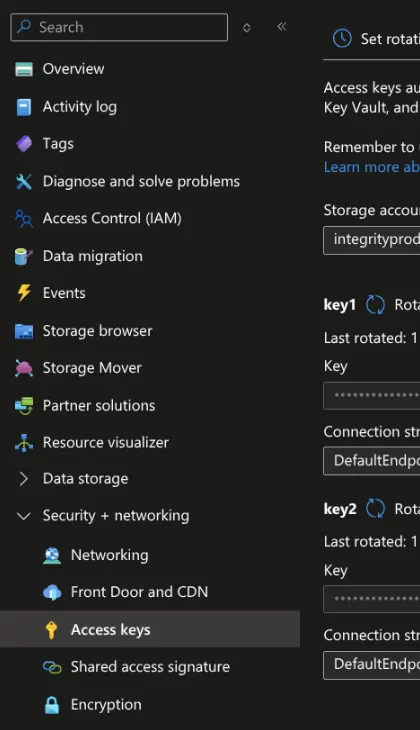
3. Get Access Credentials
- Navigate to Security + networking > Access keys
- Copy the storage account key, and optionally the connection string
- Update
secrets.yamlwith the credentials.
secrets.yaml -> global.secrets.storage.azure_blob.values:
accountKey: "<account-key>"
connectionString: "<connection-string>"
Verification
Test access to the containers.
List blobs in the governance artifacts container (should be empty initially):
az storage blob list \
  --container-name governance-artifacts \
  --account-name $STORAGE_ACCOUNT \
  --account-key $ACCOUNT_KEY \
  --output table
List blobs in the integrity store container:
az storage blob list \
  --container-name integrity-store \
  --account-name $STORAGE_ACCOUNT \
  --account-key $ACCOUNT_KEY \
  --output table
If the commands succeed without errors, the configuration is correct.
Security Best Practices
- HTTPS Only: The storage account is configured with
--https-only true— do not disable this setting - Rotate Keys: Regularly rotate storage account keys and update Kubernetes secrets
- Least Privilege: Account keys grant full storage access — scope access to specific containers where possible
- Managed Identity: Not supported with this chart. Integrity Service always needs the account key, and Governance Service uses the account key and connection string the chart passes before it considers
azureUseManagedIdentity - Enable Versioning: Enable blob versioning to protect against accidental deletion
- Audit Logging: Enable Azure Monitor storage diagnostics for access monitoring
Official Documentation
- Azure Storage CLI Reference
- Azure Storage Account Overview
- Azure Blob Storage Security
- Helm Chart Examples
Related
- Object Storage — how Azure Blob Storage compares with the other storage providers
- Azure Key Vault — the Azure key provider for DID signing keys
- Microsoft Entra ID — the Azure identity provider and its app registrations
- Backup and Restore — blob versioning, soft delete, and replication for both containers
- Deployment Troubleshooting — first checks when attachments fail
- Chart Values — the full values and secrets files these settings go into