
Agent Inventory
Find every registered agent in Guardian, inspect its identity and activity, and revoke or restore it.
The Agent Catalog in Guardian is your inventory of every agent registered with the Agent Gateway. From it you can see who owns each agent, what it has been doing, and what it was configured with, and you can stop an agent immediately if you need to.
To open it, select Agents in the Guardian sidebar.
The agent list
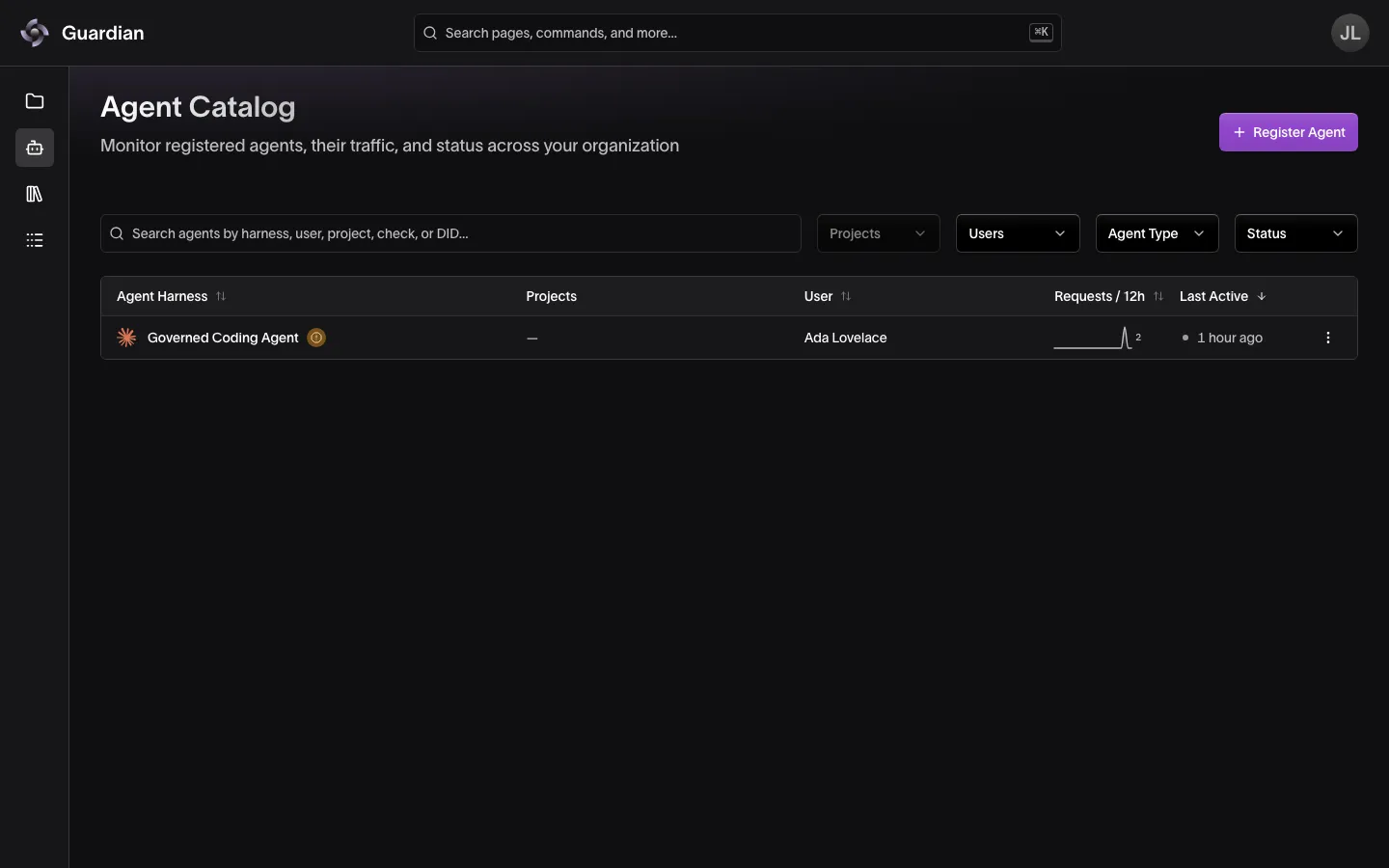
The list shows every registered agent you have access to, across your organization.
| Column | What it shows |
|---|---|
| Agent Harness | The agent’s name, an icon for its type (Claude Code, Codex, OpenCode, OpenClaw, Proxy, or Custom for a named agent), and the status of its checks |
| Projects | The projects the agent is associated with |
| User | The user who registered the agent and owns it |
| Requests / 12h | How many requests the agent sent through the gateway in the last 12 hours |
| Last Active | When the agent last sent a request, or its status if it is no longer active |
Revoked and deregistered agents appear dimmed. Use the search box to find agents by name, agent ID, harness, user, project, check, status, or DID, and the Projects, Users, Agent Type, and Status filters to narrow the list. You can sort by harness, user, request volume, or last activity.
Checks are short results that gateway plugins attach to an agent, such as a scan. The table shows one icon for an agent’s checks, in the worst status any of them reports; select it to list each check, then select a check to see which plugin published it and any detail it provided. The cards view and the agent’s own pages show each check by name.
The agent detail view
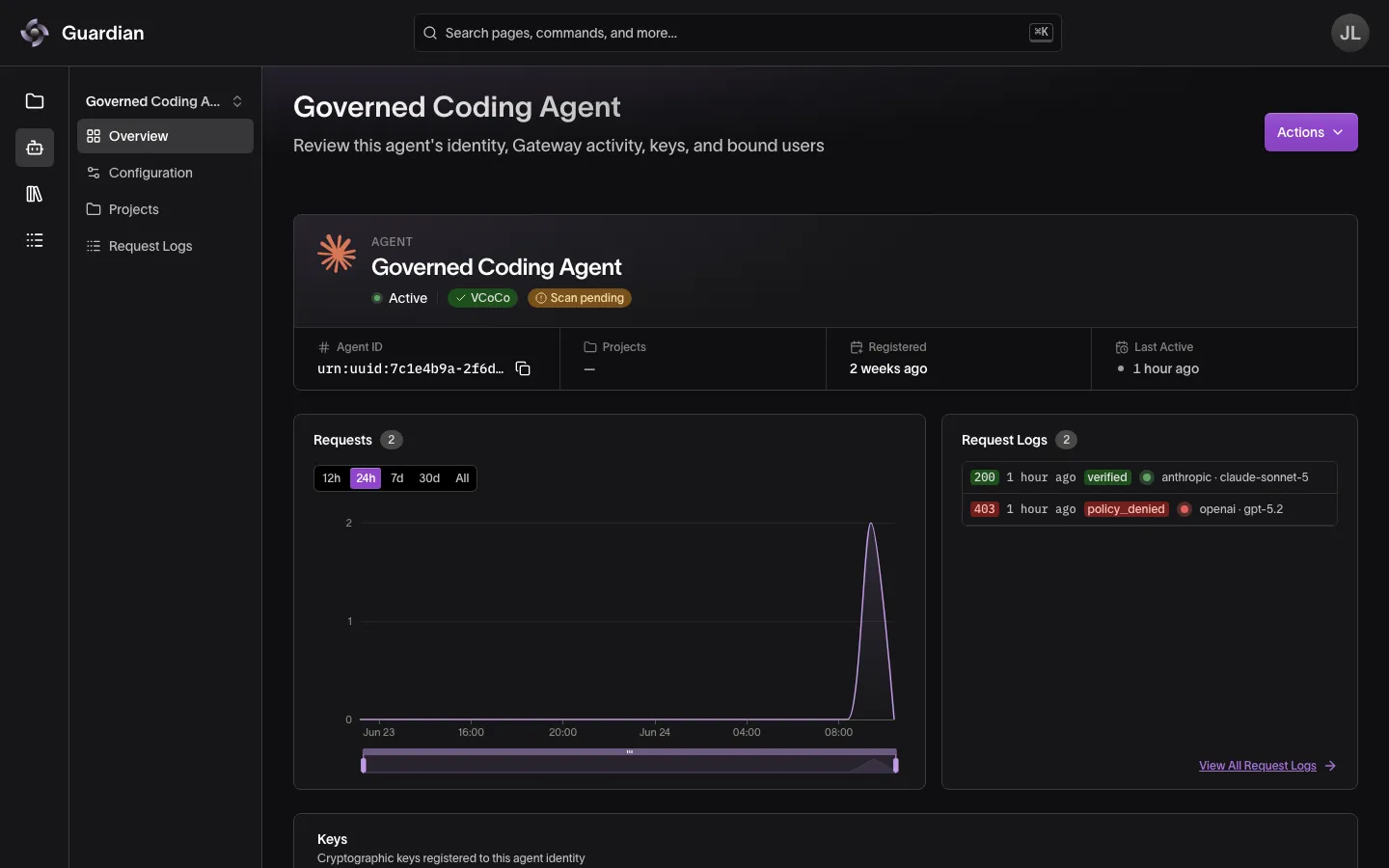
Select an agent to open its detail view. A panel beside the sidebar lists the agent’s pages. Its heading names the agent, and when you can see more than one agent it switches between them, keeping the page you’re on.
- Overview. The agent’s name, status (Active, Revoked, or Deregistered), and checks, with its agent ID (
urn:uuid:...), projects, when it was registered, and when it was last active. The agent ID is the agent’s lasting identifier. Agents whose key lives on a YubiKey show a YubiKey badge. Below them, a chart of requests over time and a preview of recent exchanges, then the agent’s registered keys (each a DID for one running instance, with its own status) and the users bound to it. - Configuration. The agent’s captured configuration, with a version selector for its state history. See Agent Configuration.
- Projects. Each project the agent is associated with, and the status of that membership.
- Request Logs. Every exchange the agent sent through the gateway. See Audit Trail.
When agent certification is enabled for your deployment, Operating Profile, Assessments, and Certification pages also appear. See Operating Profiles, Agent Assessments and Agent Certifications.
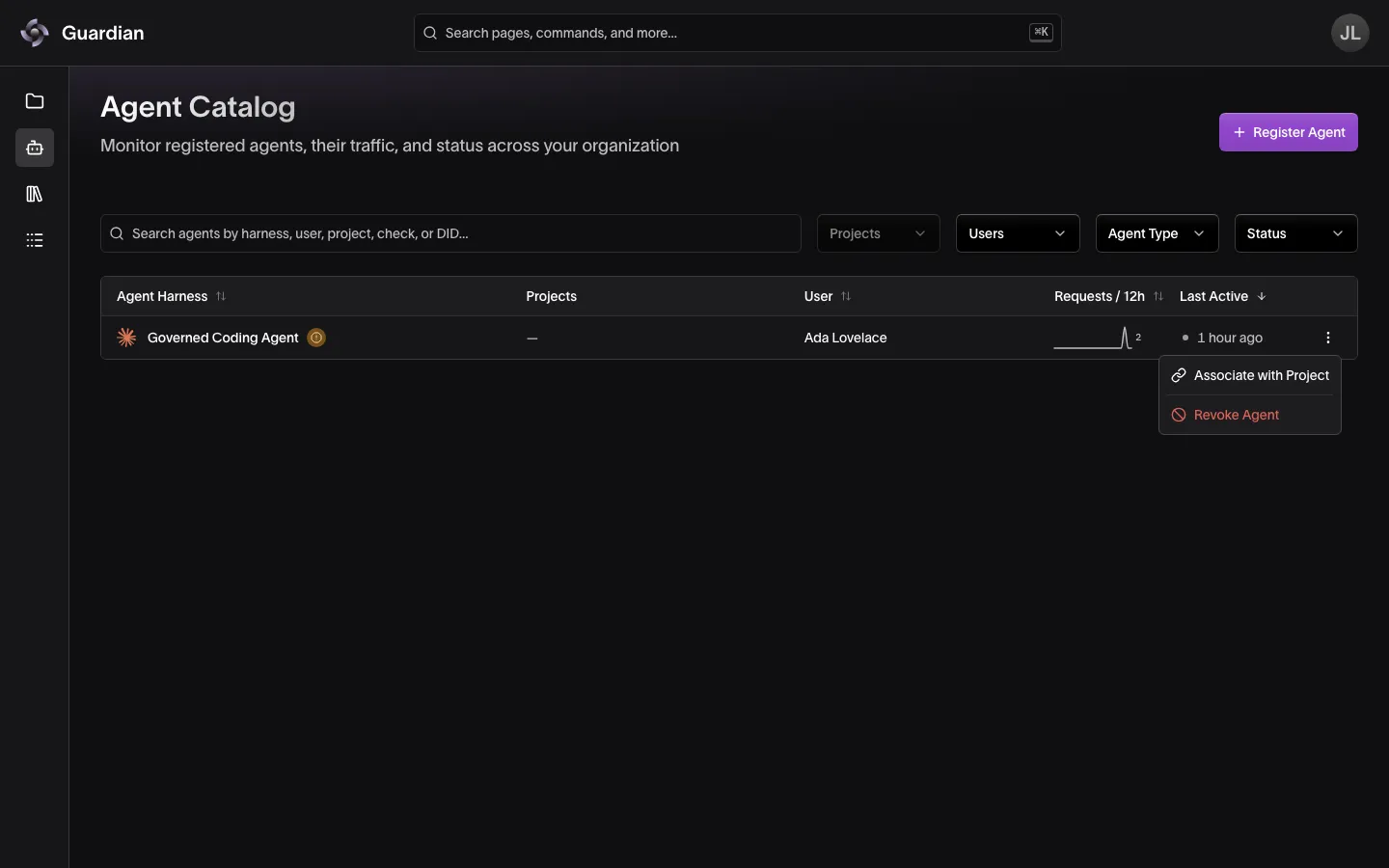
Overview has an Actions menu at the top, holding everything you can do to the agent: Design Profile (Edit Profile once the agent has one) and Start Assessment when agent certification is enabled, Associate with Project, then Revoke Agent or Restore Agent. Operating Profile, Assessments, and Projects each have their own action at the top instead: Design Profile (Edit Profile once the agent has one), Start Assessment, and Associate with Project. Each lists only the actions you have permission for and the agent’s status allows.
Associate an agent with a project
Registration and project association are separate steps. An agent that is not associated with a project can still send traffic, but it runs under your organization-wide policies only and does not appear in any project’s views.
To associate an agent, select Associate with Project from the agent’s actions menu in the list, from Actions on its Overview, or at the top of its Projects page. Or, in a project’s sidebar, select Associated Agents, then Associate Agent. You need the Create Agent Memberships permission. For the full procedure, see Associated Agents.
To end an association, in the project’s sidebar select Associated Agents, then select Revoke Membership from the agent row’s actions menu (the same action is on the agent’s Overview within the project). This requires the Revoke Credentials permission. The agent stays registered and keeps working outside the project.
Revoke and restore an agent
Revoking an agent is the kill switch. Use it when an agent is compromised, misbehaving, or no longer needed.
- In the agent list, open the actions menu for the agent and select Revoke Agent, or open the agent and select Actions, then Revoke Agent, at the top of its Overview.
- Optionally, enter a reason. It is recorded with the action.
- Confirm with Revoke Agent.
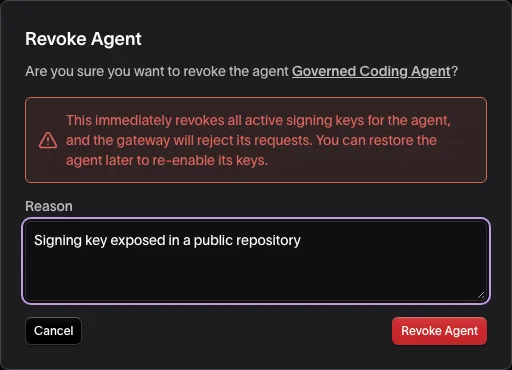
Revocation disables every signing key the agent holds. The gateway checks the agent’s status on every request, so the change takes effect on the agent’s next request. Requests already completed are not affected, and their audit records stay available. A revoked agent cannot register itself again.
To bring the agent back, select Restore Agent from the same menu, or from the agent’s Actions. Restoring re-enables its keys, and the gateway accepts its requests again.
Revoking an API key is not revoking an agent
The API key used to enroll an agent is not a traffic credential. The two kill switches do different things.
| What you revoke | New enrollments with it | Agents already enrolled |
|---|---|---|
| The enrollment API key | Rejected | Stay active; their traffic still works |
| The agent | That agent cannot register again until restored | Signed requests are rejected |
To stop an agent’s traffic, revoke the agent. See API Keys for managing enrollment keys.
Manage agents through the API
The Control Plane API covers the same actions, plus a few that Guardian does not offer. Its URL is the one Guardian is configured with for gateway features, usually on its own host and ending in /api; ask your administrator if you don’t know it. Send your sign-in token or an API key as Authorization: Bearer.
| Request | What it does |
|---|---|
GET /v1/agents | List agents, with search, filters, sorting, and pagination |
GET /v1/agents/{agentId} | Get one agent with its keys, bound users, and projects |
GET /v1/agents/{agentId}/certifications | List the agent’s certifications, with each one’s status |
PATCH /v1/agents/{agentId} | Rename the agent (display_name) |
POST /v1/agents/{agentId}/revoke | Revoke the agent, with an optional reason |
POST /v1/agents/{agentId}/restore | Restore a revoked agent, with an optional reason |
POST /v1/agents/{agentId}/keys | Add a signing key (did) to the agent |
DELETE /v1/agents/{agentId}/keys/{did} | Remove a signing key |
DELETE /v1/agents/{agentId} | Deregister the agent, with an optional reason |
You can read the agents you are bound to, and Organization Owners can read every agent. An API key with no project binding can get one of its owner’s agents if the key has full access or the Submit Agent Assessments scope. An API key scoped to View Agent Certifications with no project binding can also read the certifications of its owner’s agents. A scope counts only while its owner still holds that permission in the key’s organization. To list agents, a key must name a project with project_uuid and needs View Project Data on it. Every other request is for Organization Owners only and does not accept an API key.
Deregistering is permanent. It removes the agent’s keys and bound users and sets its status to Deregistered; the agent cannot be restored or registered again. The Guardian Platform has no deregister action, so this request is the only way an agent reaches that status. To stop an agent you may want back, revoke it instead.
Who can do what
| Action | Who can do it |
|---|---|
| Register an agent | Organization Owners and users with the Agent Operator role |
| Associate an agent with a project | Project Owners and Organization Owners (Create Agent Memberships) |
| Revoke a project membership | Roles with Revoke Credentials |
| Revoke or restore an agent | Organization Owners only |
| Rename, deregister, or change keys | Organization Owners only, through the API |
Revoking and restoring agents cannot be delegated to a project role or carried by an API key. See Roles and Permissions.
Associating agents, revoking memberships, and revoking or restoring agents are recorded in Activity Logs; filter Resources to Gateway Agent to see them. Headless registrations made with an API key are not logged there.
Troubleshooting
| Symptom | What to check |
|---|---|
| A newly registered agent is not in the list | Confirm registration succeeded and printed an agent ID. Check the Status and other filters, and clear the search box. |
| The agent is in the list but not in a project’s views | The agent is not associated with that project yet. Associate it from the agent’s actions menu. |
| Associate with Project is missing from the menu | You need Create Agent Memberships on at least one project, and the agent must be active. |
| Revoke Agent or Restore Agent is missing | Only Organization Owners can revoke or restore agents. |
| Last Active never updates | The agent is not running through Viper, or its requests are being rejected. Check its recent exchanges for a denial reason. |
| A revoked agent’s requests still appear | Exchanges from before the revocation stay in the log. New requests show as denied with the reason agent_revoked. |
| Re-registering a revoked agent fails | Restore the agent first. A revoked agent cannot register again until it is restored. |
Related
- Register Agents — enroll the agents this list shows
- Associated Agents — link an agent to a project and manage its membership
- Audit Trail — every exchange an agent sent, with allow and deny reasons
- Agent Configuration — an agent’s Configuration page and its state history
- Roles and Permissions — who can register, associate, and revoke agents
- Activity Logs — the record of associations, revocations, and restores