
Policies
Create policies in the Policy Library, apply them to projects, and archive applied policies.
About policies
A policy is a structured set of compliance requirements. Policies may represent regulations, RMFs, or internal SOPs.
Policies are made up of two types of components:
- Policy details (name, description, type, etc.)
- Controls (the discrete mandates used to define and measure compliance progress)
Key actions associated with policies include:
Creating a policy
Creating a policy lets you define a set of compliance requirements for your project.
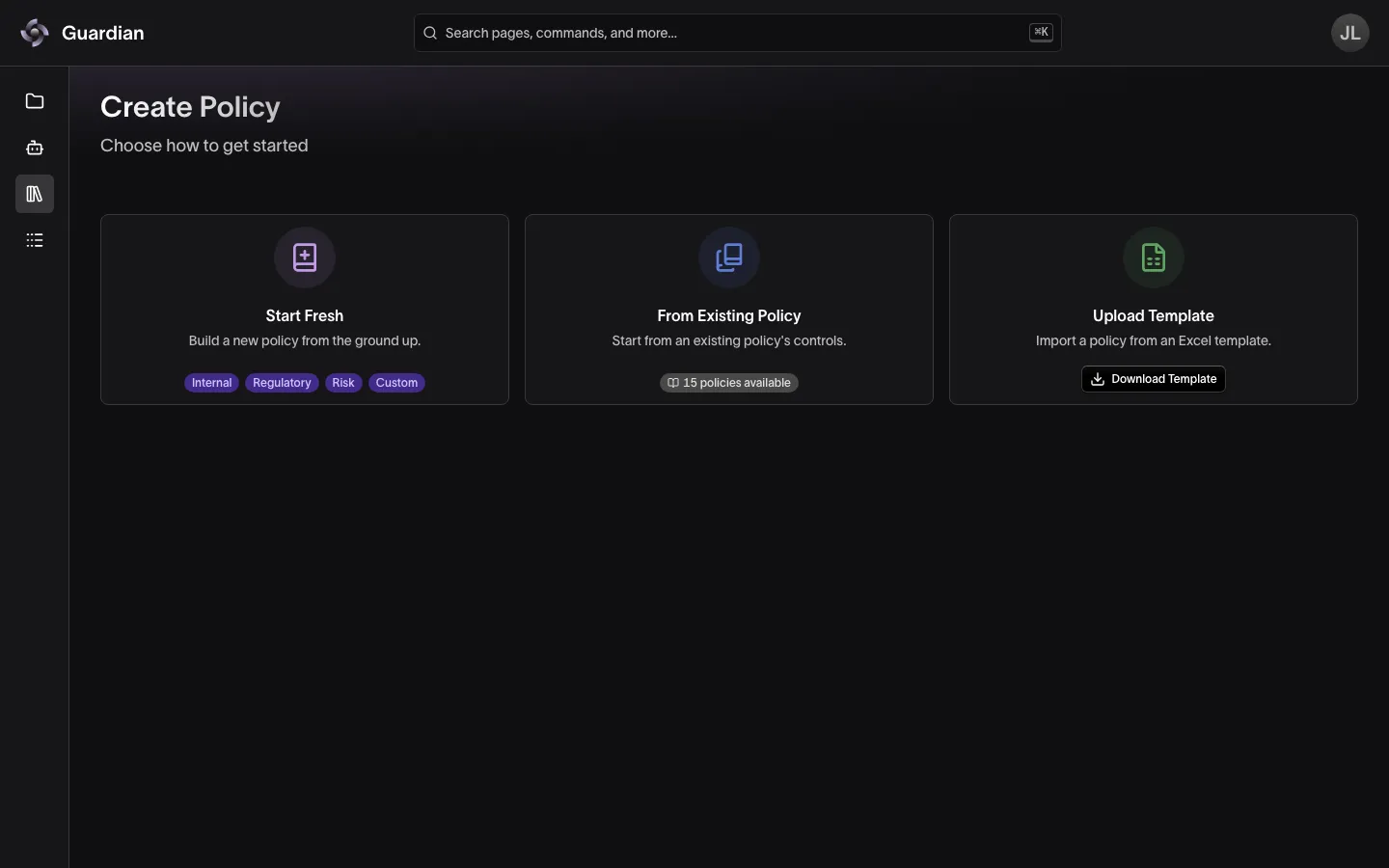
There are three ways to create a policy in Guardian:
- Start Fresh: Create a new policy from scratch from within Guardian.
- From Existing Policy: Create a new policy using an existing policy as a template from within Guardian.
- Upload Template: Create a new policy using an Excel template that is downloadable from Guardian.
- An empty version of this template can be downloaded from the Upload Template flow, or you can export a policy in this template from the Policy Library as described here.
All three methods achieve the same result: a new policy populates the Policy Library and is ready to apply to a project. Choose the creation method that is most efficient for you — we recommend starting with Upload Template as it offers the most flexibility.
Creating a policy requires the Create Policies permission, which only Organization Owners hold. To create a policy:
- Navigate to the Policy Library in the sidebar (Library when agent certification is on)
- Select Create Policy
- Select which method you want to use:
- Start Fresh opens an empty policy
- From Existing Policy lists your policies; select the one to start from
- Upload Template opens Upload Policy Template; upload your Excel file, review it, and select Import Policy
- Complete the Policy Details step and select Continue
- Complete the Controls step, using Add Control for each additional control, and select Continue
- Review the policy and select Create Policy
When creating a policy, refer to this guide to understand each component:
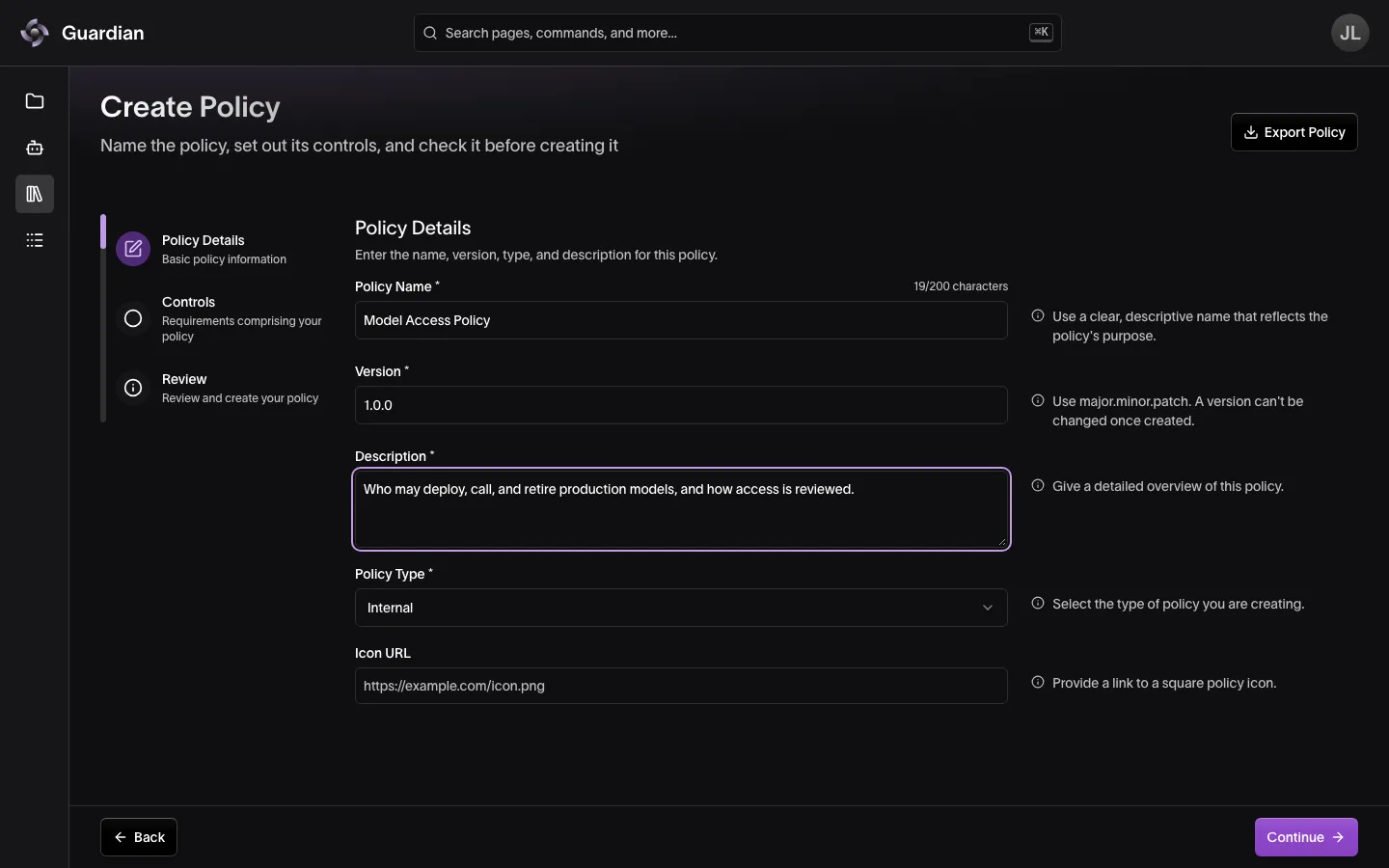
Policy Details
- Policy Name: The name that identifies your policy within Guardian, up to 200 characters.
- Version: A version number for you to track policies with similar attributes. Required, must follow semantic versioning (for example,
1.0.0or2.0.0-beta.1), and the name and version pair must be unique within your organization. - Description: A summary explaining the purpose of your policy.
- Policy Type: The category your policy belongs to.
- Internal: Policies that represent your organization’s standard operating procedures (SOPs) or similar documents.
- Regulatory: Policies derived from regulations or legislations.
- Risk Management: Policies that represent RMFs from agencies like NIST or those created by industry.
- Custom: Policies that are created for the unique needs of your project or don’t fit neatly into a category above.
- Icon URL: The icon associated with your policy.
Controls
Each control represents a discrete mandate within your policy. You can add as many controls as your policy requires.
- Title: A short, descriptive name for the control.
- Control Code: A unique identifier for the control, up to 30 characters. Use letters and numbers, with single hyphens or periods between them (for example,
MAP-1.2). Codes must be unique within the policy, ignoring case. - Description: An explanation of what the control requires.
- Citations: Reference sources that support or define the control, up to 20 per control. For each citation, provide:
- Citation Source Name: The title of the cited document, up to 255 characters. If left blank, it is taken from the URL.
- Citation Source URL: A full link to the cited document, starting with
http://orhttps://, up to 2,048 characters. - Select Add Citation to add it to the control.
Applying a policy
Applying a policy to a project activates the policy’s controls, enabling your team to start tracking compliance.
Applying a policy requires the Apply Policies to Projects permission, held by Organization Owners and Project Owners.
To apply a policy from a project:
- In the project sidebar, select Applied Policies
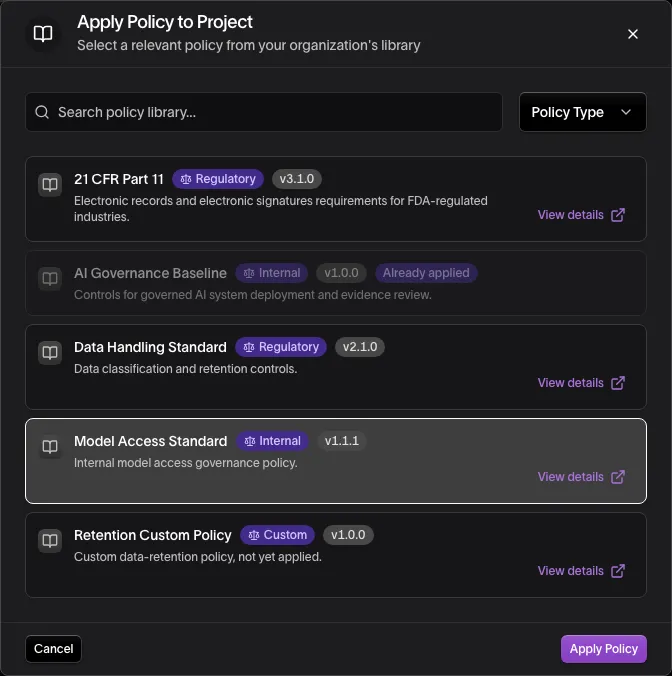
- Select Apply Policy
- Select the policy you want to apply
- Select Apply Policy
To apply a policy from the Policy Library:
- Navigate to the Policy Library in the sidebar (Library when agent certification is on)
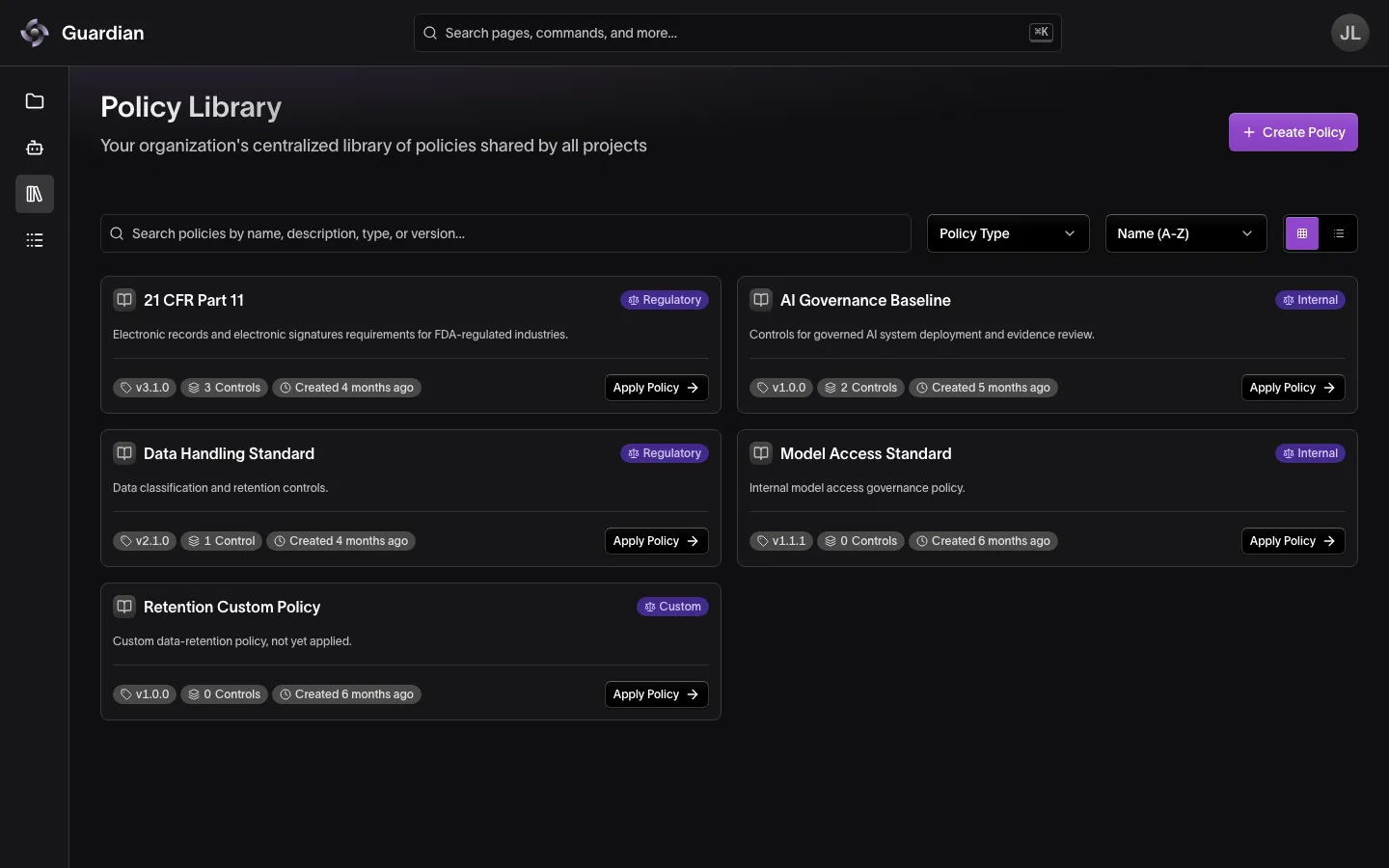
- Select the policy you wish to apply, then select Apply to Project. In the library you can instead select Apply Policy on the policy’s card or row menu.
- Choose a project
- Select Apply Policy
Viewing an applied policy
Select an applied policy under Applied Policies in the project sidebar to open its pages, listed in the sidebar under ‹ Applied Policies. The policy’s name heads the sidebar; select it to move to another applied policy in the project, on the same page. An archived policy’s sidebar reads ‹ Archived Policies instead, and moves only between archived policies.
- Overview: the policy’s compliance summary, its details, and its controls table. Archive Policy and Export PDF Report are here too
- Controls: a control’s evidence and reviews (see Declarations and Reviews); it opens on the policy’s first control
- Monitoring: the indicators that evaluate the policy’s controls (see Indicators)
- Evaluation Logs: the results of those evaluations
- Certification: the credentials that certify the policy (see Credentials)
Archiving a policy
If an applied policy no longer requires compliance tracking within a project, it can be archived. Archiving a policy prevents any further activity from being recorded in that policy, suspends the policy’s controls from contributing to the project’s Overall Compliance, disables indicator evaluations from being logged, and revokes active credentials when applicable.
The policy’s existing compliance history is preserved for future reference. If the policy needs to be reactivated, it can be reapplied to the project. Reapplying a policy resumes its controls’ contribution to compliance. Indicators disabled when the policy was archived stay disabled; activate each again.
To archive an applied policy:
- In the project sidebar, select the applied policy under Applied Policies
- Select Archive Policy
- Type the applied policy name to confirm
- Select Archive
To reapply an archived policy:
- In the project sidebar, select Applied Policies
- Select the Status filter dropdown and choose Archived
- Select the archived policy
- Select Reapply Policy
- Type the applied policy name to confirm
- Select Reapply
Viewing the Policy Library
The Policy Library contains all policies available to apply to your project. This page is scoped to your organization and is therefore accessible to Guardian users across all projects. You can navigate to the Policy Library via the sidebar. When agent certification is turned on for your deployment, the sidebar item reads Library, and the Policy Library is its Policies section, beside Programs.
The Policy Library primarily helps your team understand what policies are available to them and what controls they contain. Use the Policy Type filter to narrow the list.
Selecting a policy opens that version. Use the version selector to open another; an earlier version shows a banner with a link to the latest.
The Policy Library also allows users to export a policy in the .xlsx template used in the Upload Template policy creation flow. Editing this file in a common spreadsheet editor (such as Google Sheets) is the most efficient way to make significant changes to a policy.
To export a policy:
- Navigate to the Policy Library in the sidebar (Library when agent certification is on)
- Select the policy you wish to export
- Select Export Policy
- Download the .xlsx file
Related
- Controls — how each control’s status is tracked once a policy is applied
- Atomization — break a regulation or SOP into controls that each state one obligation
- Projects — the project sidebar where applied policies live
- Declarations and Reviews — start building compliance against an applied policy’s controls
- Credentials — attest that a project has met an applied policy
- Reports — export an applied policy’s compliance record