
Member Management
Add and remove organization and project members, view a member's roles and activity, and change their roles.
About Member Management
Members are managed in two distinct scopes:
- Organization-wide
- Within a specific project
Permissions
- Organization Owners can manage organization members.
- Organization Owners and Project Owners can manage project members.
Learn more about Roles and Permissions.
Key concepts and actions associated with Member Management include:
Managing Organization Members
Members are first added to an organization through their Identity Provider (IdP) like Keycloak or Auth0.
To manage organization members:
- Navigate to the application header
- Select the profile dropdown → Select Members
- You will be taken to Organization Members
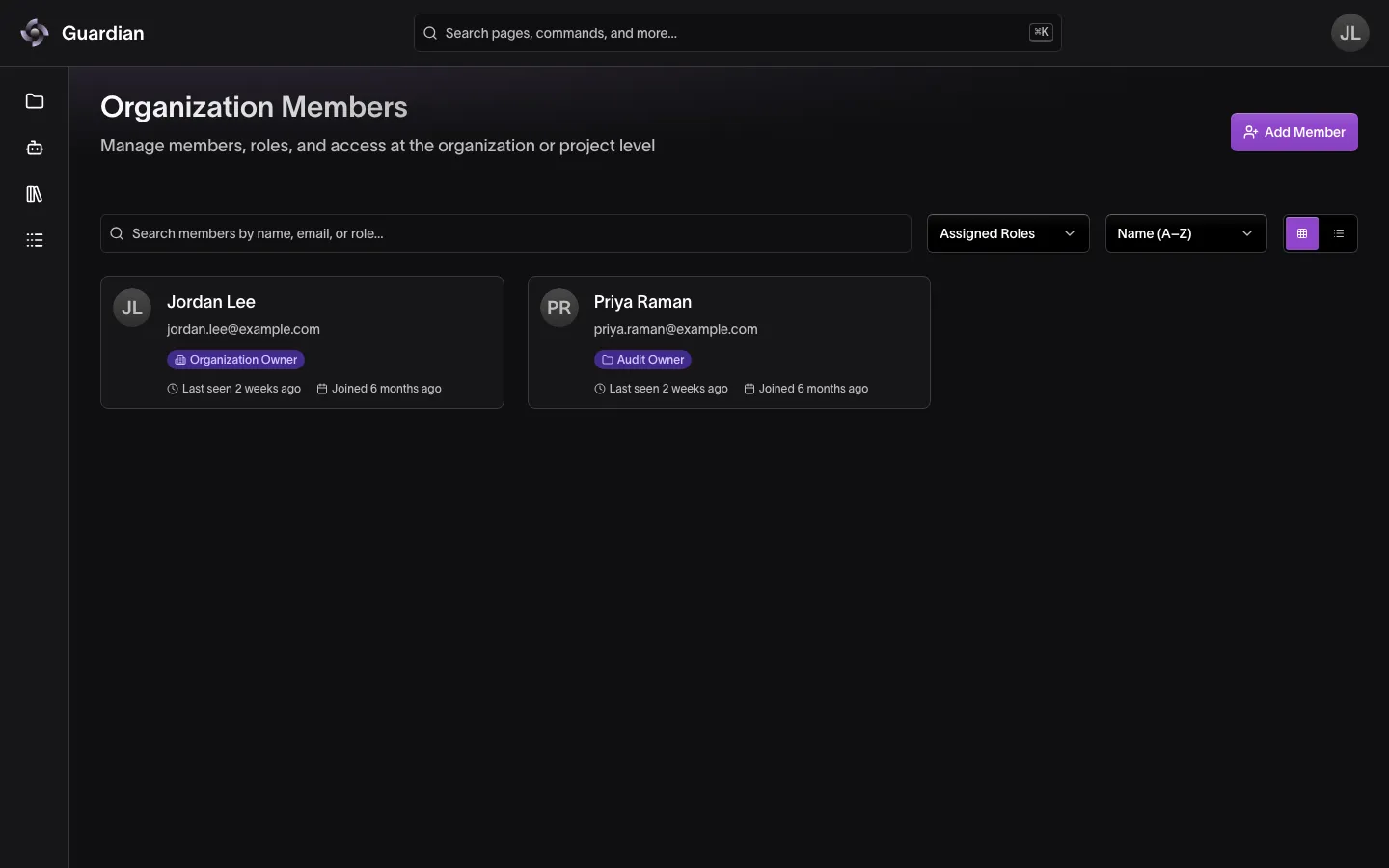
Viewing a member
To view an organization member:
- Select member → Member Details
To view your own member page:
- Select the profile dropdown → Select Your Profile
The page shows:
- Profile — the member’s name, email, and status, and when they joined and were last seen
- Identity — the member’s DID
- Roles & Permissions — each role the member holds, whether it applies to the organization or to projects, and how many permissions it grants. A project role names its project, or counts them when there are several; hover the count to see their names. Select View Permissions to see every permission and project for each role.
- Activity — the member’s actions over the last year, shown by day. Select a day to list that day’s actions, select an action to open it in Activity Logs, or select View All Activity to open Activity Logs filtered to the member. Shown only if you hold View Project Data in the organization or one of its projects.
A member who hasn’t accepted their invitation yet shows an Invitation Pending notice, naming who invited them and when. Their roles take effect once they accept.
Adding a member
To add a member to your organization:
- Select Add Member
- Under Member, select a user who is already on the platform or an external user from your identity provider
- Under Access, choose Organization Owner for full access across the organization, or Project Access
- For Project Access, choose the projects for each Project Role the member should hold. Optionally, select Additional Roles such as Agent Operator
- Select Add to Organization, or Import & Add User for an external user
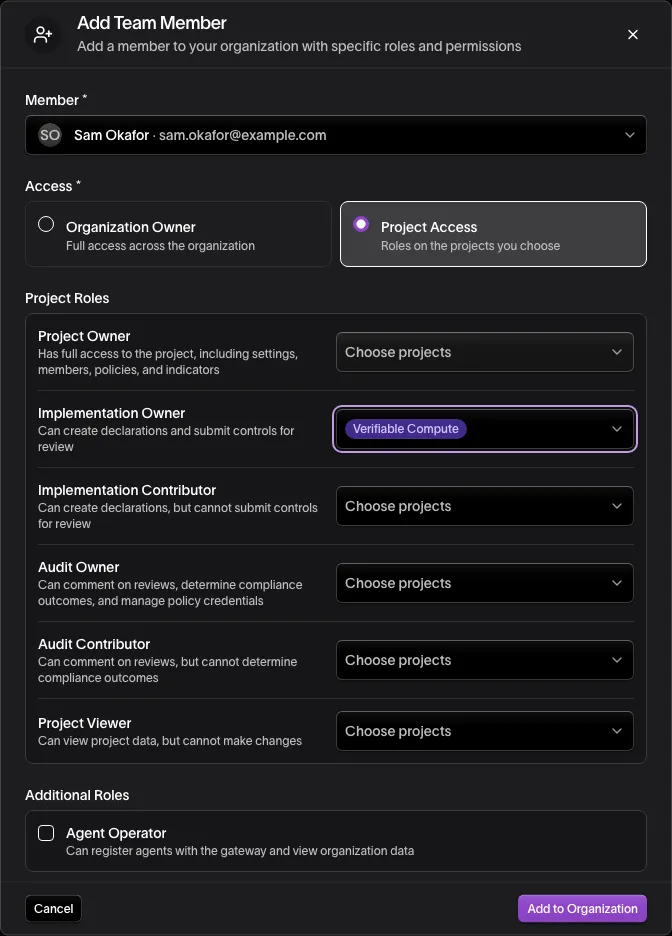
Updating organization member roles
To update an organization member’s roles:
- Select member → Member Details
- Select Manage Roles
- Under Access, choose Organization Owner or Project Access
- For Project Access, under Project Roles, use Choose projects beside each role to pick the projects where the member holds it. Optionally, select Additional Roles such as Agent Operator
- Select Review Changes
- Review the changes, then select Update Roles
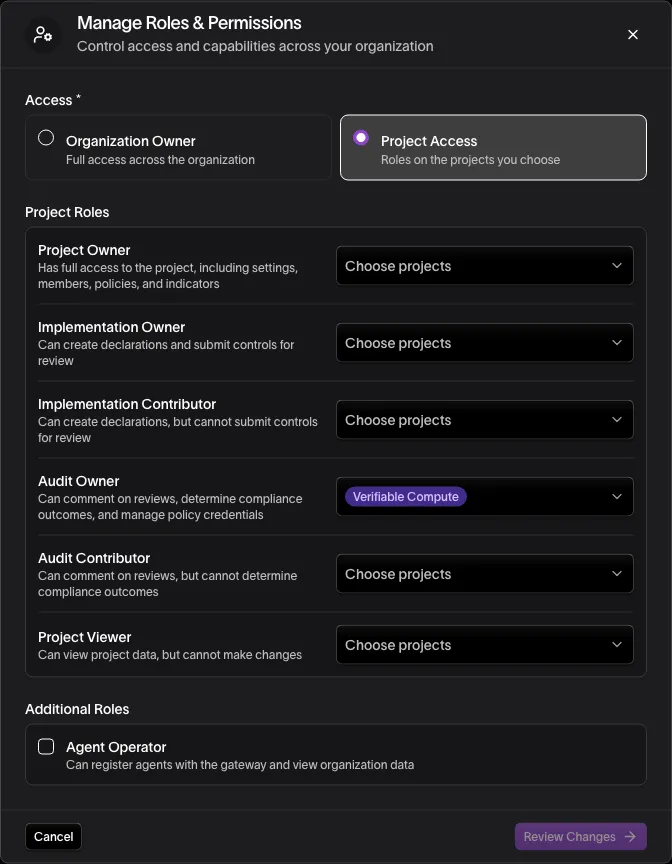
Removing an organization member
To remove an organization member:
- Select member → Member Details
- Select Remove Member
- Type the organization member name to confirm
- Select Remove
Managing Project Members
After being added to an organization, members can be added, removed, or have their roles changed within a project.
To manage project members:
- Open the project from Projects
- In the project sidebar, select Project Settings
Select a project member to open their Member Details, the same page described in Viewing a member.
Adding a member to a project
To add an organization member to a project:
- Select Add Member
- Under Member, select a member of your organization
- Under Project Roles, select one or more roles
- Select Add to Project
Updating project member roles
To manage a project member’s role:
- Identify member and select vertical ellipses menu
- Select Edit Roles
- In Manage Roles & Permissions, select or clear Project Roles
- Select Review Changes
- Review the changes, then select Update Roles
Removing a member from a project
To remove a project member:
- Identify member and select vertical ellipses menu
- Select Remove Member
- Type the project member name to confirm
- Select Remove
Related
- Roles and Permissions — what each role you assign can do
- Activity Logs — the full record behind a member’s activity
- Projects — open Project Settings, where project members are managed
- RBAC and Membership — how Auth Service scopes organization and project membership
- Settings — your own account, organizations, and roles